
Tue Sep 17 05:45:57 UTC 2024: ## Mac Users Rejoice: How to Play AVI Files on Your macOS Device
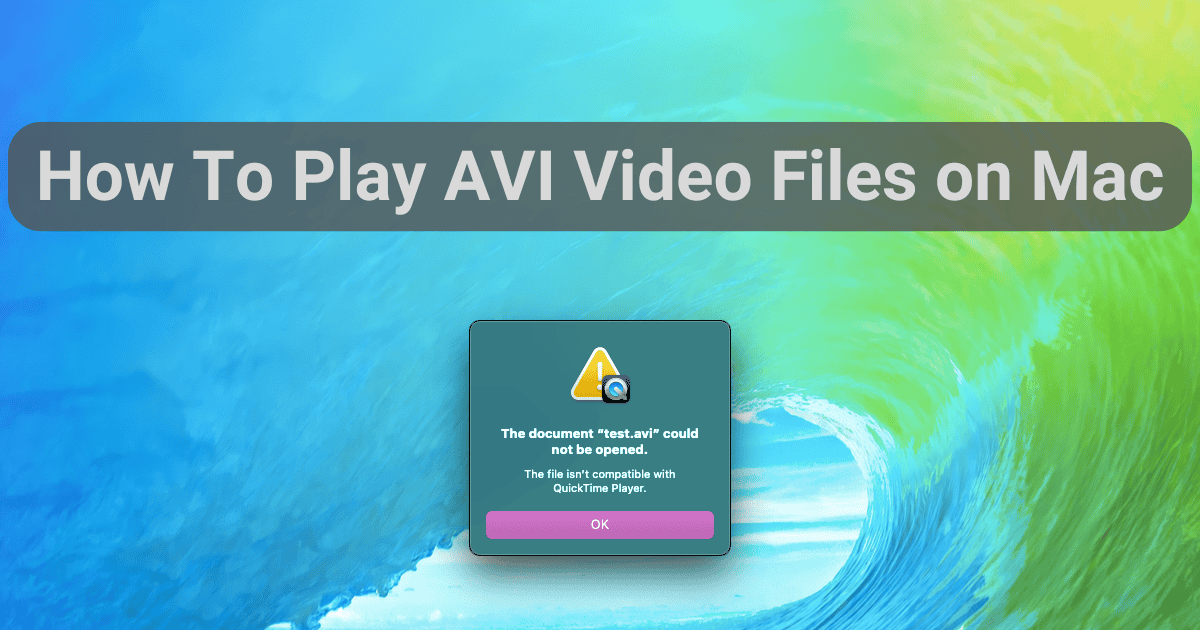
**San Francisco, CA** – If you’re a new macOS user, you may have encountered the frustrating issue of being unable to play AVI videos on your Mac’s default media player, QuickTime. Fortunately, there are several simple solutions.
The most straightforward option is to use a third-party video player. **VLC**, the popular open-source media player, is a top recommendation. It boasts wide format compatibility, playing virtually anything you throw at it. However, VLC has a dated interface and lacks a dark mode, though it’s generally a reliable choice for simple video playback.
For a more aesthetically pleasing option, **IINA**, another free and open-source player, offers a sleek and elegant interface reminiscent of Apple’s design. It can even automatically download subtitles. However, it requires add-ons for online video streaming and lacks AirPlay support.
If you desire a blend of VLC’s versatility and IINA’s aesthetics, **Elmedia** is worth considering. This player offers a robust feature set, but comes with a $20 price tag for features like AirPlay mirroring and screenshot capture.
For those who prefer sticking with QuickTime, you can simply convert the AVI files to a compatible format. **HandBrake**, a free and open-source video converter, supports numerous file types and codecs, allowing you to easily transform AVI videos for QuickTime playback. Alternatively, **VLC** can also be used for video conversion.
No matter your preference, playing AVI videos on your macOS device is easily achievable. Whether you opt for a third-party player or choose to convert the files, the solution is readily available. Enjoy your media!
 First Piper